Sharing Profiles
Sharing Rules are used to configure data sharing rules across users in role hierarchy. In PE Front Office, the default access for CRM records is set to public, which enables everyone to see all records. When sharing rules are set to private, users can only view records assigned to them and records of users below them in role hierarchy. Sharing Rules also help you to set custom sharing rules to share data with specific role, role and subordinate, and group.
Notes! Admin users can view all records irrespective of roles, profiles and sharing rules
Features
Sharing Rules enables you to configure following permissions across users in PE Front Office.
| 1 | Private |
Users can only view records assigned to them, and records that are assigned to users with a role below them. |
| 2 | Public Read only |
Everyone can view all records but cannot modify and delete the records. |
| 3 | Public Read, Create/Edit |
Everyone can view and modify all records but cannot delete the records. |
| 4 | Public: Read, Create/Edit, Delete |
Everyone can view, modify and delete every one else's records. |
Configuring organization-wide sharing rules
This feature enables you to configure sharing rules across your organization. The default sharing rules offered by PE Front Office are set to Public. However, you can change the sharing rules according to your requirements.
Follow few simple steps to configure sharing rules
- Click gear icon
 in the upper
right.
in the upper
right. - Click CRM Settings.
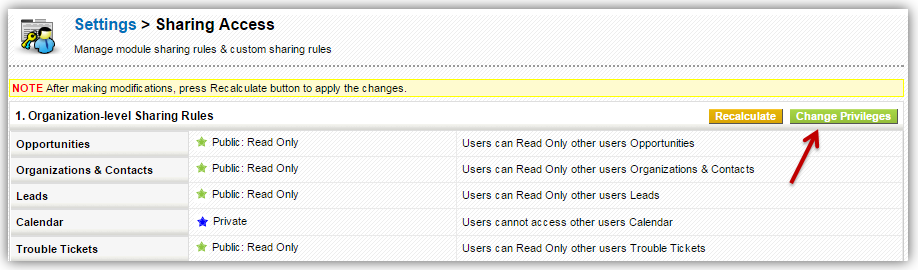
- Under Users and Access Management click on Sharing Access.
- Click on Change Privileges button.
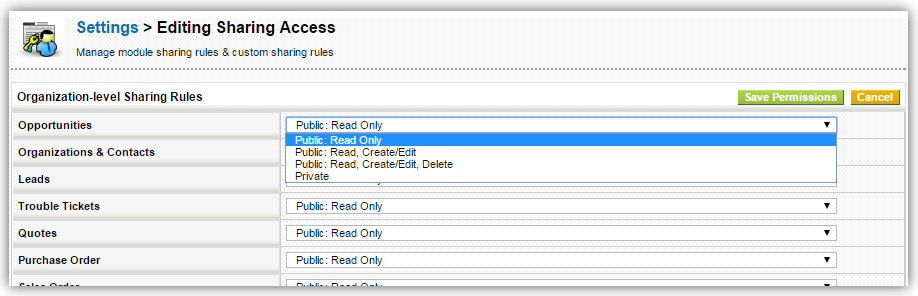
- Module list with permission dropdown next to each will appear.
- Choose permissions for the modules and click Save Permissions.
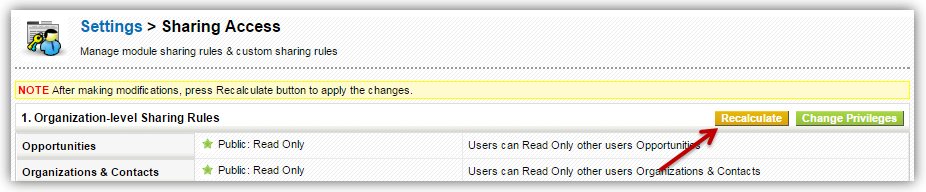
- Click on Recalculate button for changes to take effect.
Click
here to view how sharing rules and
profiles affect your user privileges.
Setting up custom sharing rules
Custom sharing rules are used to allow subordinates to perform operations on superiors' records. In other words, you, as a user on upper hierarchy, can grant access to your subordinates to view your records. This can also be achieved by setting up Sharing Rules to Public, but the intention here is to only grant access to selected group, role and, role and subordinates that are below you in role hierarchy.
For instance, Sales Manager is on a role hierarchy above Sales Person. As sharing rules are set to private,
Sales Manager can view Sales Person's records but not the other way around. Sales Manager wants to give access
on his records to his Sales Person. Now setting sharing rules to Public will let everyone view Sales Manager's
records. Setting up custom sharing rules gives Sales Manager the flexibility to exclusively grant access to
Sales Person role.
Follow few simple steps to define custom sharing rules
- Click gear icon
 in the upper
right.
in the upper
right. - Click CRM Settings.
- Under Users and Access Management click on Sharing Access.
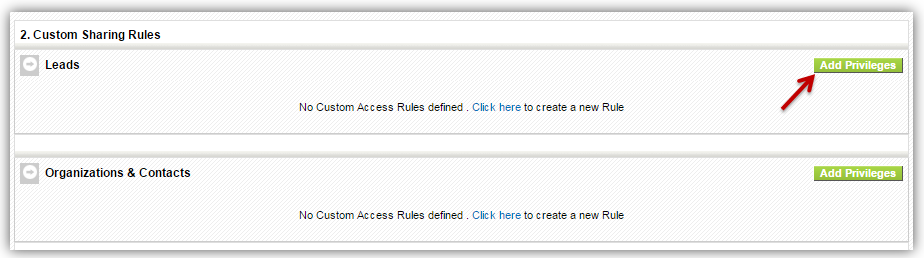
- Scroll down to Custom Sharing Rules section and click Add Privilege button next to module.
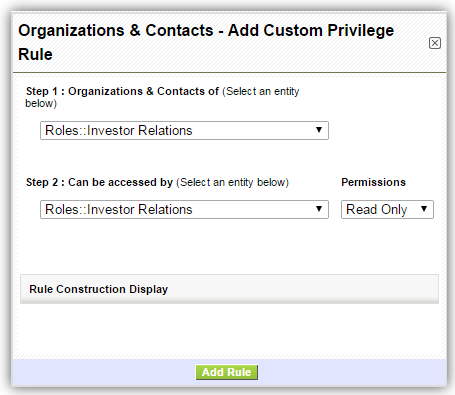
- You will see an Add Custom Privilege popup.
- In Step1, select a value to specify whose records should be accessed (Superior).
- In Step2, select a value to specify who will be accessing the records of superior (Subordinate).
- Select the privileges which Subordinate will have on Superior's records.
- Click on Add Rule.
Notes! You will have to define custom sharing rules for every module individually.