Picklist Dependency Setup
Picklist dependency setup offers you a seamless way of selecting only desired values from the picklist fields. You'll need to set-up dependency between two picklist fields (source and target picklist fields). By selecting a value in source picklist field, you'll have complete control over the target picklist fields.
For instance, we will consider a real time example. I have two different fields in Deal Pipeline module. Deal
Sector - source field, and Deal Sub Sector - target field. When a value is selected in Deal Sector field, only
values related to the selected sector should be displayed in Deal Sub Sector field. Now let's begin.
Configuring Picklist Dependency
Before we set up picklist dependency, we'll have to specify module, source field, and target field. Entire process is made simple and straight forward.
Follow few simple steps to setup picklist dependency
- Click gear
 icon in the top
right
icon in the top
right - Click CRM Settings
- Click Picklist Dependency Setup under Studio.
- You will see modules in a list view.
- Click on edit icon for any module (Deal Pipeline in our case).
- Select source field and target fields from the dropdown.
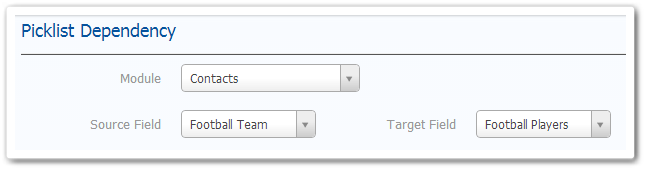
- 6. All available values in source picklist field and target field are displayed. You can view all source picklist values in header section.
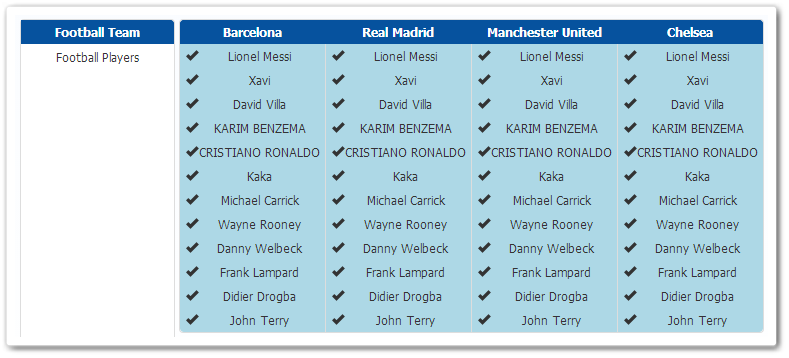
- 7. Now pick desired target field values under corresponding source field values(headers).
Notes! Values in blue are selected and values in grey are unselected.
- 8. Click Save
Working
After successfully setting up picklist dependency, you can select a value in source field to view only corresponding values in target field. From the above example, upon selecting a Deal Sector, we should only be able to see selected fields in Deal Sub Sector.
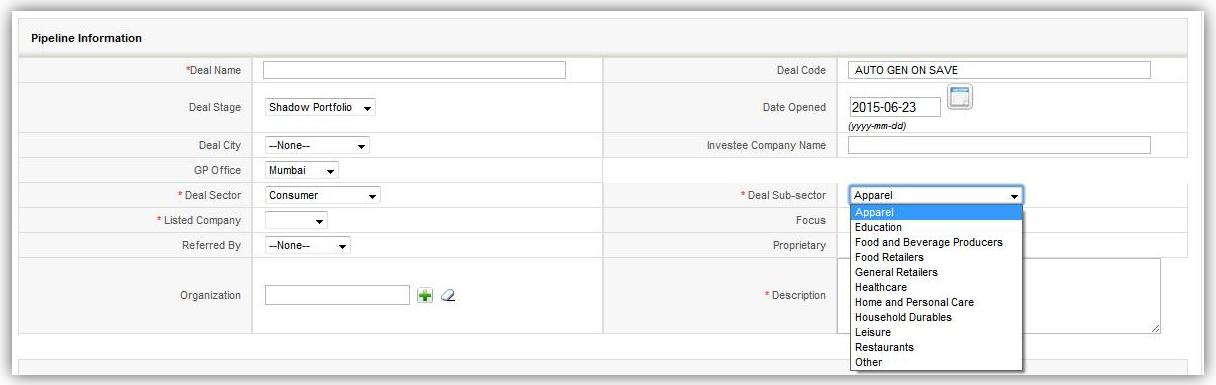
This gives you the flexibility to explicitly select appropriate values and eliminates the scope for erroneous
and inaccurate data.