Groups
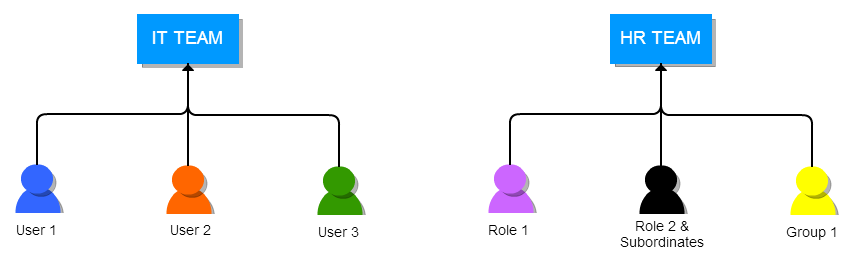
Groups can be combination on different users, roles, roles and subordinates and groups within an organization. Groups will help you to build teams to share common set of records.
Key features
When records are assigned to a group, all members associated with the group can perform operations on the record. This will help your users to work together as a team. For instance, If a support team member is on leave for the day, there is a chance that trouble ticket(case) assigned to him will not be resolved in time. Should the ticket be assigned to a group, all members associated to the group will get email notification and any one can handle the issue.
A group supports following combinations
- Users : Selected users will be part of the group
- Roles: All users associated with a role will be part of the group
- Roles and subordinates : All users associated with the role, and its subordinates will be part of the group
- Group: All users associated with selected group will be part of the group
Notes! Groups will also help you to define custom sharing rules. You can define data sharing rules to make a certain role, role and subordinates, or a group view records of another role, role and subordinates, or a group.
Creating Groups
You can create different groups to manage common set of operations within your organization
Follow few simple steps to create a group
-
Click gear icon
 in the upper right.
- Click CRM Settings.
- Under Users and Access Management click on Groups.
- Click on New Group button.
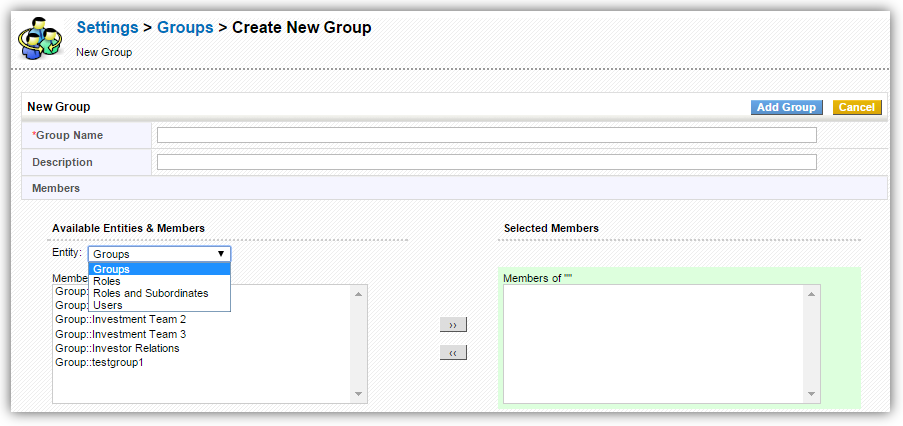
- You will see Create New Group form.
- Provide the Group Name (mandatory), Description and select its Members from the available Entities and Members.
- Click Add Group button.
Editing Groups
This feature enables you to modify existing groups to meet your requirements.
Few simple steps to edit a group
-
In the list view of groups, click on pencil
 icon to the left of desired group
- Modify fields.
- Click Save to update changes.
Deleting Groups
This feature enables you to delete existing group if it doesn't meet your requirements.
Follow few simple steps to delete an existing group
-
In the list view of groups, click on trash
 icon to the left of desired group.
- Transfer responsibilities to another existing User or Group.
- Click Save.